All docs

Getting started

Last updated: April 16, 2026

This guide walks you through the full MapleDeploy lifecycle: creating a server, deploying your first application, and optionally adding a custom domain. By the end, you'll have a live app running on Canadian infrastructure.

What you'll need

  • A Git repository hosted on GitHub, GitLab, Bitbucket, or any Git provider Coolify supports.
  • A Dockerfile in your repository (recommended), or a project that Nixpacks can detect (Node.js, Python, Go, Ruby, PHP, Rust, and others).
  • A domain name (optional, only needed for the custom domain step).

You don't need a MapleDeploy account yet. Step 1 covers that.

Step 1: Create your MapleDeploy server

Head to the pricing section and start your free trial, or sign in if you already have an account.

Pick a plan

From the dashboard, click "Create server". Choose a subdomain (this becomes your-name.mapledeploy.ca and your Coolify dashboard URL) and select a plan. Starter and Pro include a 30-day free trial, so you can deploy and test before any charges.

Plan selection cards showing specs and prices from $45 to $695 CAD/month with Pro selected
Select a plan based on the resources your applications need. Starter and Pro include a 30-day free trial.

Wait for provisioning

After checkout, MapleDeploy provisions a dedicated VM in Toronto. The dashboard shows real-time progress through each step: creating the VM, hardening the OS, installing Coolify, configuring DNS and SSL. This typically takes 8 to 15 minutes.

Close-up of the provisioning checklist showing completed and pending setup steps
The provisioning checklist updates in real time as each step completes.

You'll receive an email when your server is ready. You can also watch the dashboard, which updates every 10 seconds during provisioning.

Open your Coolify dashboard

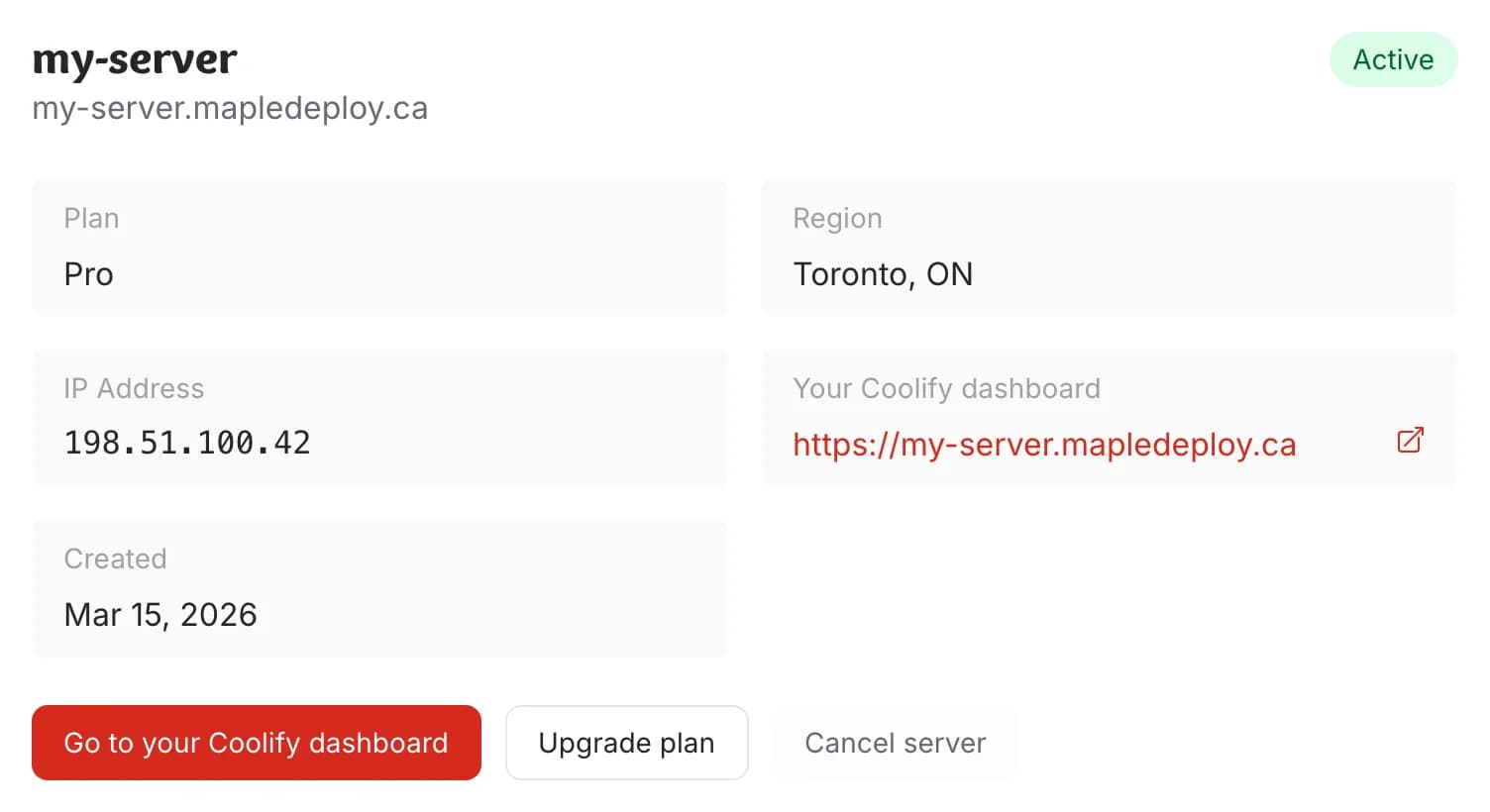
Once provisioning completes, your server detail page shows the Coolify dashboard link. Click it to open your fully managed Coolify instance. This is where you'll deploy and manage your applications.

Close-up of server details showing Pro plan, Toronto region, IP address, and Coolify dashboard link
Your server is ready. Click the Coolify dashboard link to start deploying.

Step 2: Connect your Git provider

In Coolify, go to Sources in the sidebar. Click "Add" and select your provider. Coolify supports GitHub, GitLab, Bitbucket, and other Git hosts. You'll be redirected to authorize the Coolify app. Grant access to the repositories you want to deploy, or select all repositories if you prefer.

This is a one-time setup. Once authorized, your source appears in Coolify and every future project can pull code from it. If you enable webhooks during authorization, Coolify can also trigger automatic deployments when you push to a branch.

Coolify Sources page content showing a connected GitHub source with an add button
Your connected sources appear here. You only need to set this up once.

Step 3: Create a project and application

Navigate to Projects and create a new one. Projects are organizational containers, so you might group by client, team, or environment.

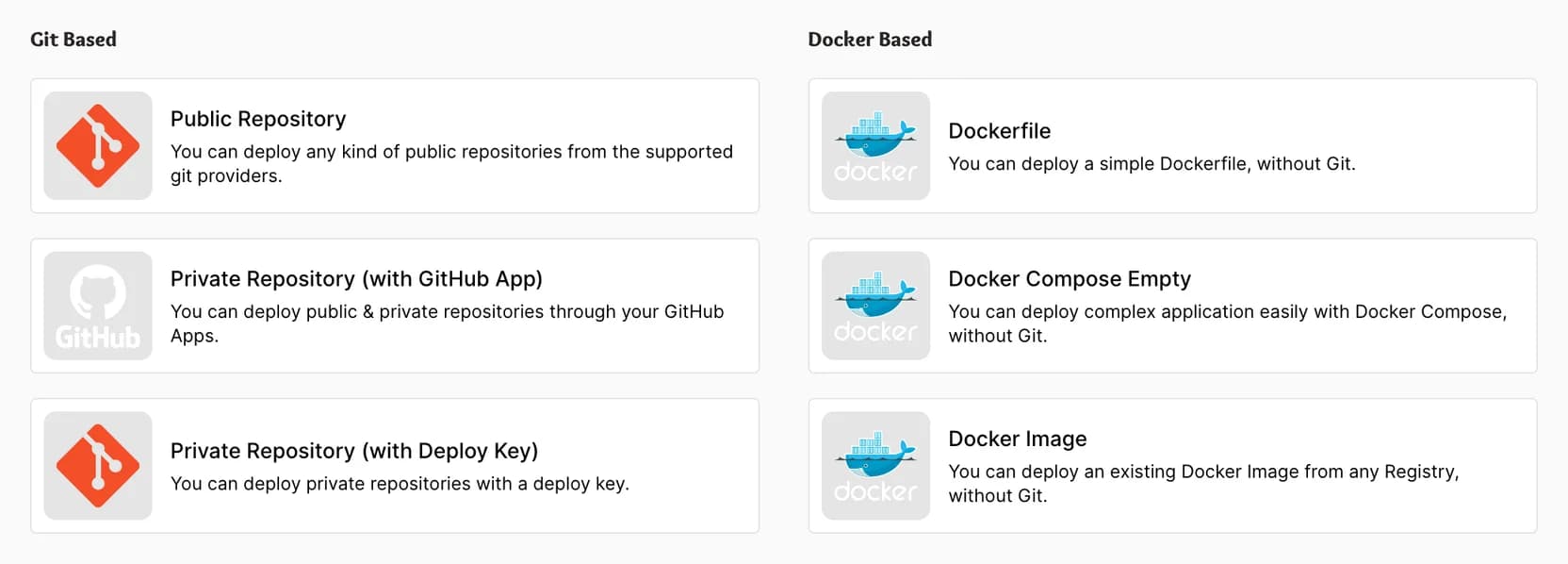
Inside your project, click "Add New Resource" and choose how to connect your repository. "Public Repository" works for any public repo without additional setup. "Private Repository" uses the source you connected in Step 2 and gives Coolify access to your private repos. Select your repository and branch to continue.

Close-up of six deployment options split into Git-based and Docker-based columns with descriptions
Select your repository type. Public repos work without a connected source. Private repos use the source you connected in Step 2.

Step 4: Configure the build

Coolify needs to know how to build your application and which port it listens on.

Build pack

If your repository has a Dockerfile, select "Dockerfile" as the build pack. This is the most reliable option because you control exactly how the image is built. If your Dockerfile isn't in the repository root, set the "Dockerfile Location" field to its relative path (e.g., ./docker/Dockerfile).

If you don't have a Dockerfile, select "Nixpacks" instead. Nixpacks auto-detects your project's language and framework and generates a build plan automatically. It works well for standard projects, but complex setups or monorepos may need a Dockerfile for reliable builds.

Exposed port

Scroll down to the Network section and set "Ports Exposes" to match the port your application listens on:

  • Node.js Express or Next.js: 3000
  • Python Flask: 5000
  • Go HTTP server: 8080

This must match exactly. If the port is wrong, the deployment will succeed but the health check will fail and your app won't be reachable.

Close-up of Network section showing Ports Exposes set to 3000, Port Mappings, and Network Aliases fields
Set Ports Exposes to match the port your application listens on.

Step 5: Deploy and verify

Click "Deploy" and Coolify will pull your code, build the image, and start the container. You can follow the build and deployment logs in real time to watch each step.

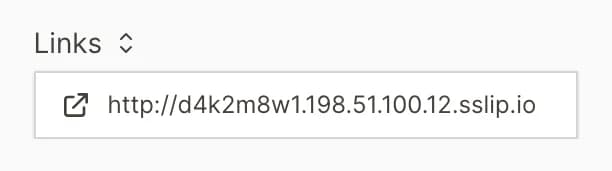
Once the deployment finishes, open the "Links" dropdown at the top of the application page to find your temporary URL. It will be a sslip.io address based on your server's IP.

Close-up of the open Links dropdown showing a temporary sslip.io URL before custom domain setup
The Links dropdown shows your app's temporary URL. This works immediately, no DNS setup needed.

If your application loads, the deployment is working. If not, here are the most common causes:

  • Build errors: Check the build logs for compilation failures or missing dependencies.
  • Port mismatch: Verify that "Ports Exposes" matches the port your app actually binds to.
  • Missing environment variables: If your app requires environment variables, add them in the "Environment Variables" tab and redeploy.

Step 6: Add a custom domain

Your app is already live on the temporary URL. This step is optional, but when you're ready for a production domain, there are two parts: DNS and Coolify configuration.

Configure DNS

At your domain registrar or DNS provider, create A records pointing to your server's IP address. You can find this IP in the MapleDeploy dashboard under your server's details, or in Coolify under Settings, then Server.

TypeNameValue
Aexample.comyour server IP
Awwwyour server IP

DNS propagation typically takes 10 to 30 minutes, though it can occasionally take up to 48 hours.

Set the domain in Coolify

In your application's General settings, find the "Domains" field and enter your domain(s) using the full URL format, separated by commas:

https://example.com,https://www.example.com
Close-up of application general configuration showing Name, Build Pack set to Dockerfile, Domains field, and Direction setting
The Domains field in the General tab. Enter your custom domains here using the full URL format.

Save and redeploy. Coolify will automatically provision an SSL certificate via Let's Encrypt once the DNS records resolve to your server.

Verify

Visit your domain in a browser after the deploy completes. If the SSL certificate hasn't been issued yet, wait a few minutes and try again. Coolify retries certificate provisioning automatically. Once it's working, the "Links" dropdown will show your custom domain.

Close-up of the open Links dropdown showing two live application URLs
After setting up your custom domain, the Links dropdown shows your production URLs.

Troubleshooting

Build fails with "no matching manifest": Your Dockerfile may specify a platform that doesn't match your server's architecture. MapleDeploy servers run on AMD64. Add --platform=linux/amd64 to your FROM instruction if building on an ARM machine locally.

App deploys but returns 502: The container started, but the application inside it isn't responding on the expected port. Check that "Ports Exposes" matches your app's actual listening port, and that your app binds to 0.0.0.0, not 127.0.0.1 or localhost.

SSL certificate not issued: DNS records must point to your server's IP before Let's Encrypt can issue a certificate. Verify with dig example.com and confirm the A record resolves to the correct IP. If you just updated DNS, wait a few minutes and redeploy.

Nixpacks build fails: Nixpacks may not detect your project correctly, especially for monorepos or uncommon project structures. Switch to a Dockerfile for more control. You can generate a starting Dockerfile with nixpacks build . --out . locally, then customize it.

Environment variables not available at build time: By default, environment variables in Coolify are available at runtime. If your build process needs them (e.g., NEXT_PUBLIC_ variables in Next.js), check the "Build Variable" toggle for each variable that needs to be present during the build step.