Your app works on its temporary Coolify URL as soon as it deploys. When you are ready to use your own domain, configure DNS and add the domain in Coolify.
What you will need
- A deployed Coolify application.
- A domain name you control.
- Access to your domain registrar or DNS provider.
- Your MapleDeploy server IP address.
You can find the server IP in the MapleDeploy dashboard on the server details page, or in Coolify under Settings > Server.
Step 1: Add DNS records
At your DNS provider, create A records that point to your server IP.
| Type | Name | Value |
|---|---|---|
| A | example.com | Your server IP |
| A | www | Your server IP |
DNS changes often work within 10 to 30 minutes, but some providers can take longer.
Step 2: Add the domain in Coolify
Open your application in Coolify. In the General settings, find Domains.
Enter each domain as a full URL, separated by commas:
https://example.com,https://www.example.com
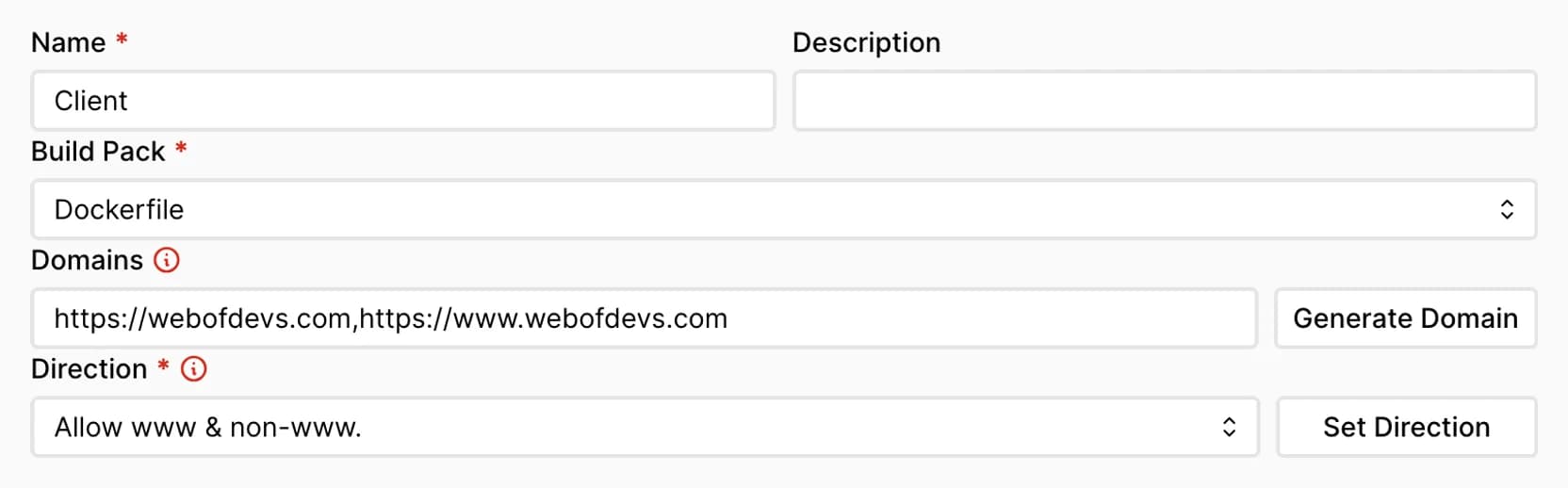
Save the change and redeploy the application.
Step 3: Verify SSL
After the deploy finishes, visit your domain in a browser.
Coolify issues an SSL certificate after DNS points to your server. If the certificate is not ready yet, wait a few minutes and try again.
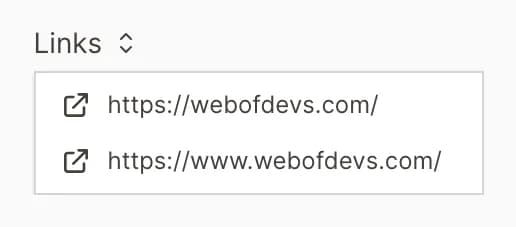
Once the domain is working, the Links menu will show your production URLs.
Troubleshooting
The domain still points somewhere else: Check the A record at your DNS provider and confirm it points to your MapleDeploy server IP.
SSL is not issued yet: DNS must resolve to your server before the certificate can be issued. If you recently changed DNS, wait a few minutes and redeploy.
The app returns 502: The domain is reaching the server, but the application is not responding on the expected port. Confirm Ports Exposes matches the port your application listens on.